Map and current position
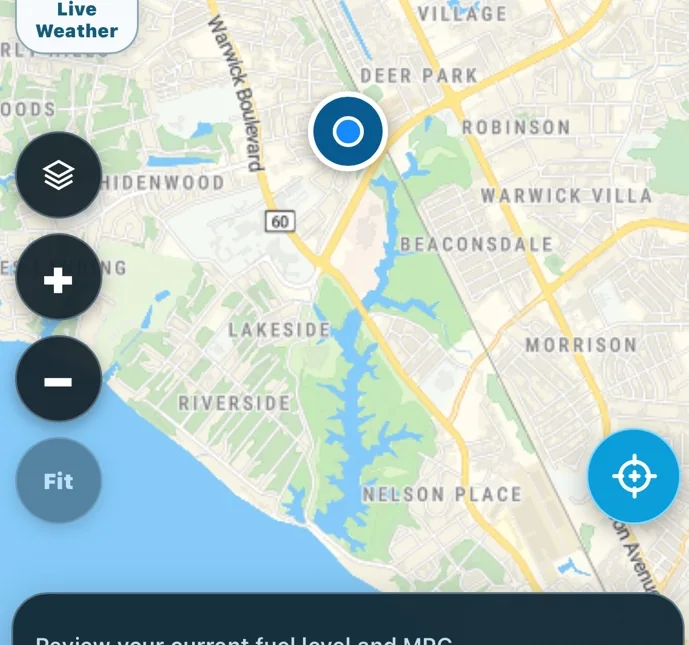
See the planning map, recenter on your location, and zoom or change the map view.
How to Open RoadPlan. Allow location access when iOS asks. Tap the target icon to center the map on your position.
ROADPLAN FOR IPHONE
Learn how to plan a truck trip, use GPS, check stops, and keep trip records. Start with an illustrated how-to or look up a feature in the complete reference.
These are cropped screenshots from the RoadPlan iPhone app. Some were captured on earlier builds and may show different colors or labels.
See the planning map, recenter on your location, and zoom or change the map view.
How to Open RoadPlan. Allow location access when iOS asks. Tap the target icon to center the map on your position.
Build a route with a starting point and up to three destinations. Fuel and rest stops do not use destination slots.
How to Tap Plan your trip. Confirm your starting point, enter your destinations in order, and select the matching address for each. For each destination, tap Truck entrance, place the pin at the truck driveway, and tap Save truck entrance. Add appointment times and stop activities where needed.
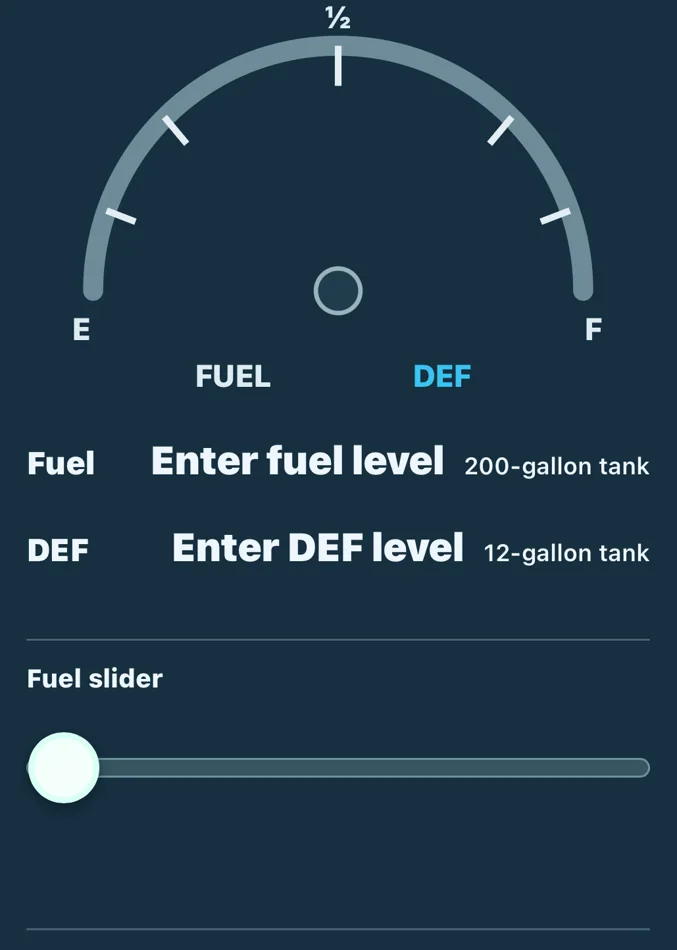
Fuel and DEF readings and your truck’s average MPG help RoadPlan estimate consumption and range.
How to Open Fuel & HOS. Enter the fuel and DEF currently on board and your average miles per gallon. Use the gauge sliders or enter the amounts directly.
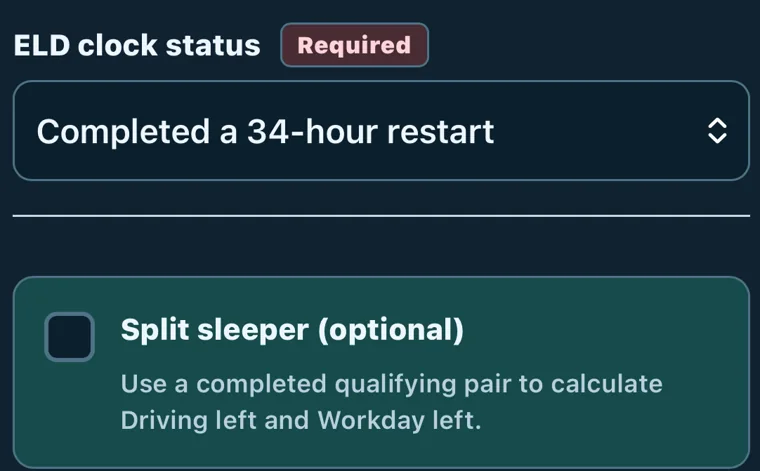
RoadPlan uses the clocks you supply to estimate rest stops and arrival times. Your ELD is the source for actual hours.
How to In Fuel & HOS, choose the ELD clock status that matches your situation. With Fresh daily clocks or Enter remaining clocks, use Upcoming recap hours to enter verified dates and hours if applicable. Use Split sleeper only for a completed qualifying pair.
Review the entries before RoadPlan calculates truck directions and planned fuel and rest stops.
How to Tap Review entries, check your route and readings, then follow the build prompt. In Trip details, expand Trip map to inspect the route before Go.
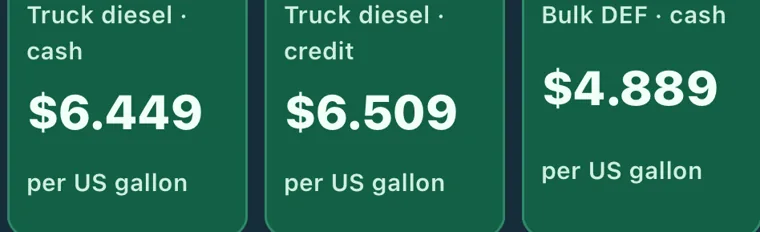
Inspect selected locations, including addresses, Google Maps links, and diesel and DEF price cards when available.
How to Open Stop details on a card. Check tractor-trailer access before driving there. Use Find new location on a supported stop or Recalculate all stops to refresh the plan.
Save a trip to review and start later.
How to Open Trip details and tap Save trip for later. Choose a future departure and reminder if offered. Before leaving, verify your current location, fuel, ELD clocks and remaining stops.

Find fuel and rest stops, food and shopping, or truck services from the planning map.
How to Tap a category at the top of the map. Select a matching location, verify the address and truck access, and use Go when the truck route is ready. Quick Select is for one stop and does not require fuel, MPG or HOS entry.
View weather near your route before departure or while parked.
How to Tap Live Weather on the planning map. Check the map and its time or update indicators before relying on the display.
Go uses truck routing and the truck profile saved on your account.
How to Review the route and stops, then tap Go. Confirm you checked access and parking if prompted. Allow precise location access. If truck directions are unavailable, review the stop or truck profile while parked.
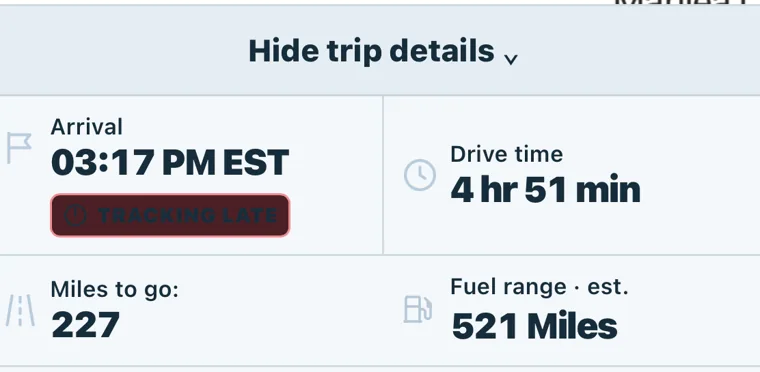
The GPS shows the reported speed limit when available, GPS-estimated speed, ETA, remaining distance and available fuel estimates.
How to Open Trip details in GPS to see the readings. Check road signs for the actual limit. A dash means a reading is unavailable. Compare ETA with your appointment and account for fuel, rest and other stops.
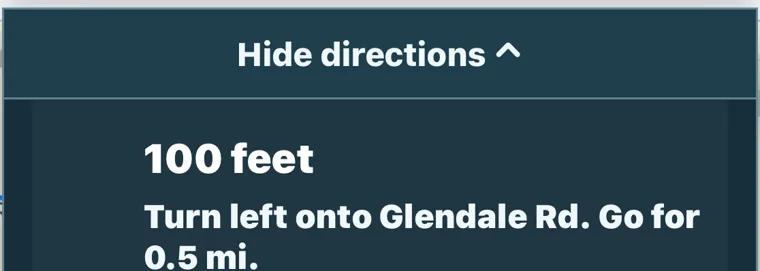
The directions list previews maneuvers. Map controls help you recenter and adjust the display.
How to While parked, use the GPS menu to open the turn list or adjust display and voice options. Use Hide directions to return to the map.
GPS can recalculate after a deviation when it has a reliable fix and a valid truck route.
How to If directions are unavailable, stop safely. Check precise location permission, the truck profile and the selected location. Recalculate or reopen the route while parked.
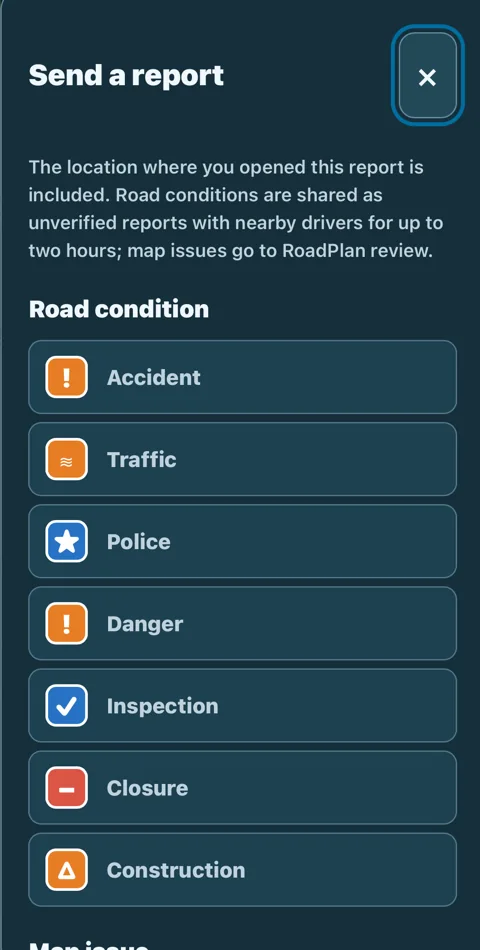
Send a road-condition report or flag a map issue for RoadPlan to review.
How to While parked, open Send a report, choose the correct category and verify the location before sending. Treat nearby driver reports as unverified.
Record what happened at a stop so the remaining trip can reflect your actual timing.
How to When parked at the stop, open the arrival or activity controls. Choose the activity matching your ELD and confirm its start or end when prompted. Check your ELD before continuing.
Supported iPhone and Watch builds can show upcoming directions on your wrist during a compatible navigation session.
How to Install RoadPlan on the paired Watch when available, allow relevant permissions, and start guidance on iPhone. Check the watch display while parked. Keep RoadPlan visible if GPS indicates foreground-only guidance.
Published prices can distinguish cash, credit and DEF, depending on the station feed.
How to Open Stop details at a fuel stop. Read the individual price cards and tap the provider link beside Google Maps when available. Verify current prices at the station.
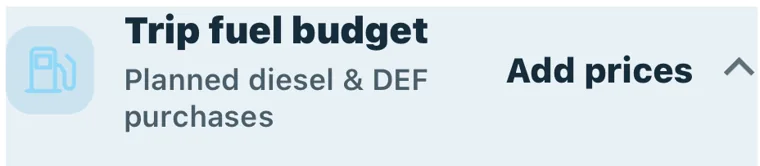
See fuel and DEF on board, estimated use and planned purchases.
How to In Trip details, expand Trip fuel budget. Review the readings and update purchase prices and quantities where offered. Planned purchases are separate from estimated consumption.
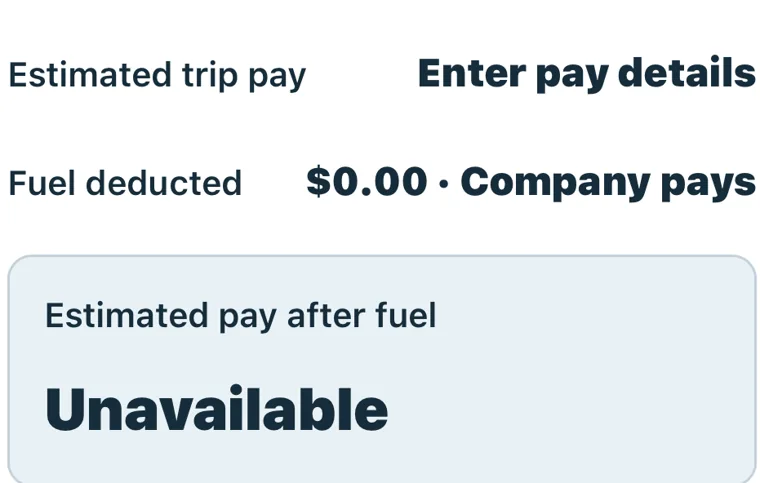
Estimate trip pay and, if applicable, deduct planned fuel purchases.
How to In Trip details, expand Trip pay estimate. Choose a pay method and enter the rate or amount. Select I pay for fuel if you cover diesel and DEF. Review the resulting estimate before taxes and other expenses.
Review trip-related earnings and costs together.
How to Open the ledger from the account or trip earnings entry when available. Select a trip or period and review recorded amounts against your receipts and settlements.
Your saved dimensions and weights help RoadPlan request tractor-trailer routes.
How to Open your account and find My Truck Profile. Enter your actual vehicle details and save. Update the profile when the equipment or load changes.
The appearance setting controls supported app screens and map styling.
How to Open Account settings and choose Light, Dark or System. Reopen the affected screen after changing the setting if its appearance has not refreshed.
iPhone permissions control access to GPS and optional notifications.
How to Open iPhone Settings for RoadPlan to review location and notification access. Use Precise Location for GPS and sign in with the same account to access saved trips.
Support tickets are for private help. The forum is for public discussion where available.
How to Use Support to describe the issue, including the screen, steps and app version. Avoid posting private trip, account or load details in the forum.
Your account or purchase provider shows your subscription status and renewal information.
How to Open your account to see the available billing controls. If your subscription was purchased through Apple, manage it in your Apple Account subscriptions.
Search the detailed guide by feature, screen or task.
60 chapters
Start here / 01
RoadPlan combines tractor-trailer trip planning, selected fuel and rest stops, shared GPS guidance, stop information and trip records. Treat the generated route and schedule as a plan to review. The app cannot confirm that a particular business will accept your truck on a particular day. Posted signs, current road restrictions, your ELD and direct facility instructions take priority. Begin by setting up your account and truck, then enter the trip in driving order.
Start here / 02
Sign in to keep saved trips and account records together. Review the truck settings in My Account before routing, especially height, dimensions and any values that changed with the equipment. A stored profile is reused so you do not need to enter it each trip. Incorrect profile information can produce unsuitable routing. The planner is for tractor-trailers; entering a destination does not establish a confirmed truck entrance or permission to park.
Start here / 03
The guided form separates Route & stops, Fuel & HOS and Review. Use Continue to move forward and Back to revisit your entries. The footer remains separate from the scrolling form. Review required-field markers rather than guessing why a step cannot continue. Before building, check the summary for the correct addresses, dates, clock values, fuel quantities and extra time. If you return to change an earlier step, rebuild the plan so downstream estimates match the new entries.
Route & stops / 04
Enter the address where this trip begins. Choose a search result so the text is linked to a mapped location. Use my location can fill a nearby address when device permissions and a fresh position are available; verify that address. A starting point is separate from the three destination allowance. If the map or address is wrong, correct it before building because every leg and stop estimate depends on this location.
Route & stops / 05
Add up to three destinations, such as a pickup and one or two deliveries. The starting point does not count. Automatic fuel and rest stops do not use a destination slot. Keep the list in the order you actually intend to drive. Use the destination controls to change or remove an entry, and check all later appointments after doing so. Do not add the same business twice merely to represent an automatic fuel or rest activity.
Route & stops / 06
Type enough of the business or street address to distinguish the location, then select the matching result. Check the street number, city, state and postal code. Similar names or duplicated brand words can refer to different map listings. A label in the form is not proof that a stop accepts tractor-trailers. If an old saved address needs reselection, choose the current mapped result and rebuild rather than leaving unrelated coordinates attached to new text.
Route & stops / 07
Favorites keep useful places easy to reuse; recent addresses help you return to places you searched before. Save a selected, correct location rather than an unfinished search phrase. When loading a saved address, review the facility and truck access again: a favorite is a convenience, not a permanent guarantee of parking or fueling permission. Use New address when replacing an entry and check that the associated stop and appointment now belong to the intended facility.
Route & stops / 08
Truck entrance selection is required for each destination in Plan your trip. Where a pin selector is offered, use it to identify the actual truck access point rather than a car entrance or building center. Compare it with facility instructions and available overhead imagery. Save the pin and review the resulting route. An entrance pin cannot override a restricted road, confirm a bridge clearance or grant permission to enter private property. Check with the facility if you cannot identify the correct truck entrance confidently.
Route & stops / 09
Set the appointment date and time for each destination in that location’s local time. Check AM/PM and the calendar date, particularly on overnight trips or when crossing time zones. The trip review compares the planned arrival with the appointment. A late flag is a planning signal, not an appointment rescheduling action. If the shipper or receiver changes the time, edit the destination and rebuild so the arrival comparison and downstream estimates reflect the update.
Route & stops / 10
Choose the activity that matches the stop where the form offers a choice. Review any additional time or unload assumptions attached to the destination. Driving time and the time spent at a facility are different parts of the schedule. An arrival estimate can change when a prior stop takes longer than planned. Keep actual activity and ELD records accurate; a label in RoadPlan does not change your duty status in the ELD or certify that a particular activity is eligible for a rest period.
Route & stops / 11
Use the extra-time field for additional planning time for traffic, weather or unexpected issues. Read the review schedule to see the resulting arrivals and departures. Extra time is an estimate, not a prediction that a road will be clear. Keep automatic stop, destination and pre-trip allowances in mind when comparing the schedule with driving time. Do not remove required rest or break time just to make an appointment appear on time.
Route & stops / 12
Return to an earlier form step to change an address, appointment, fuel amount or HOS value. After any material change, rebuild before using the new schedule. Review the new route line and selected stops, not just the text you edited. If the trip reports that route estimates are updating, let it finish. A previously selected stop may no longer be reachable within your fuel or clock limits after the starting point, destination order or departure changes.
Fuel & HOS / 13
Enter your current usable diesel amount and review the tank capacity. The fuel gauge and slider are entry aids; their values should match your actual truck, not a visual guess. The default capacity may not match your equipment. A fuel estimate depends on the entered amount, capacity and MPG. If you know that the truck’s reading or tank configuration differs, correct the account or trip values before building.
Fuel & HOS / 14
Move the fuel slider to adjust the current diesel quantity, and check the numerical gallons and percentage shown with the gauge. Keep your finger on the slider while adjusting it, then scroll from another part of the form. The number is the value used for planning. Recheck it after restoring a saved trip or changing tank capacity. The control is not a live reading from the truck and should not replace the actual fuel gauge.
Fuel & HOS / 15
Review the current DEF amount and DEF tank size where offered. The combined gauge distinguishes diesel and DEF, and the trip can show separate range estimates. These are calculations from entered values, not a connection to the truck’s sensors. A station having diesel does not guarantee bulk DEF availability. Verify the relevant service and allow a practical margin rather than planning to arrive with an exhausted supply.
Fuel & HOS / 16
Use an MPG value representative of your truck and the trip. Speed, traffic, grade, wind, idle time and loading can make actual consumption differ. The reserve is a planning margin; it does not make an otherwise unreachable stop safe. Check the route distance to the first fuel stop and review any low-fuel warning. If the available fuel is insufficient, choose an earlier verified location instead of increasing MPG to force a favorable result.
Fuel & HOS / 17
Use current values from your ELD for driving, on-duty and cycle time, plus the relevant break clock. Do not enter a fresh daily clock unless you actually have it. A remaining cycle limit can still restrict the trip even with fresh daily hours. RoadPlan is a planning tool and does not replace the ELD. Correct the inputs when they change, and use the appropriate planning options for your situation rather than treating the generated times as legal certification.
Fuel & HOS / 18
RoadPlan includes planned break and rest activities when the entered clocks require them. Review their locations, duration and arrival timing. A short break does not restore every clock; a daily rest and cycle reset have different purposes. Check what your ELD reports before driving again. If the planned stop is unsuitable or unavailable, choose a reachable alternative and recalculate rather than skipping the required activity.
Fuel & HOS / 19
Driving time and the on-duty window constrain the schedule differently. Fueling, facility work and other duty activities can affect the on-duty window even when the truck is not moving. Review both the clock values you entered and the stop assumptions. RoadPlan’s calculated schedule does not automatically update or certify your legal duty records. If an estimate conflicts with the ELD, pause planning and resolve the input or activity difference.
Fuel & HOS / 20
Cycle hours can limit progress even when daily clocks appear sufficient. Enter the remaining cycle and use available recap or reset fields accurately. Review any scheduled wait or rest that results. Do not assume a 10-hour rest restores the cycle. If using recap information, check dates and the hours that actually return in the ELD. Rebuild after changing these values so later appointments and stop choices are recalculated.
Fuel & HOS / 21
The schedule may include rest, pre-trip and reset activities based on your inputs. Read arrival and departure times separately to understand how long the truck is planned to remain at a stop. Confirm that the facility allows the intended tractor-trailer parking duration. A place suitable for a quick fuel purchase may not allow overnight rest. Check your ELD and actual readiness before departure, and update the plan when the real stop duration differs.
Fuel & HOS / 22
Use the available split-sleeper guidance and form options only when they match your actual situation. Split periods, personal conveyance, yard moves and exceptions have requirements that cannot be established by choosing a label. RoadPlan does not adjudicate ELD compliance. Check the ELD, your carrier’s rules and applicable requirements when deciding whether time qualifies. If the planner cannot represent the case reliably, keep the limitation in view and plan conservatively.
Build & review / 23
After entering the route, fuel and HOS, review the form and select Build trip plan. Wait while RoadPlan calculates the route and selects stop candidates. The progress display describes work in progress; it is not a reason to tap repeatedly. If the build fails, read the reported issue and correct the relevant field or retry when the service is available. Do not start from a partial plan with missing route legs or unresolved required stops.
Build & review / 24
Trip details place the selected stops in travel order with their planned activities, arrival and departure times, and the distances or driving times between them. Expand a stop to inspect its services and other information. Check the trip as a whole: an early fuel or rest change can move every later arrival. Distinguish driving estimates from the total elapsed schedule, which may include breaks, rests and destination time.
Build & review / 25
Open Trip map to inspect the route line and numbered stops. Match the map numbers to the ordered cards. Pan and zoom to inspect the approach, but do not use a small overview alone to approve a truck entrance. A satellite or overhead view provides visual context, not a bridge-clearance or truck-access guarantee. If a route leg is unavailable or flagged, resolve it before starting navigation.
Build & review / 26
Review the arrival against each appointment, including its local time zone. A green or red indicator reflects the calculated comparison. It cannot account for every future delay, facility queue or schedule change. Inspect the assumptions if an ETA appears unexpectedly early or late, especially the departure time, time-zone conversion, destination activity and previous rest. Contact the facility through your normal process when an appointment needs changing; RoadPlan does not change it for you.
Build & review / 27
Use Find new location on a stop card when the selected facility is unsuitable. Review the alternatives and their relationship to the route, fuel and HOS limits. Choosing another location can change the schedule and route distance. Confirm the new stop’s truck access and services before accepting it. If no other stop is available, the planner may report that limitation; do not assume the original location is approved just because there are no alternatives.
Build & review / 28
Recalculate all stops asks RoadPlan to revisit automatic stop choices for the trip. Check the complete result after it finishes, including combined activities and downstream arrival times. Your destinations and automatic stop locations serve different purposes. A recalculation does not contact operators, reserve parking or purchase fuel. Verify every selected stop again if its location or planned use changes.
Build & review / 29
If a selected stop is too far for the available fuel or HOS, the planner may offer an earlier required stop. Read the explanation and review whether the later location is retained or replaced. Avoid treating an extra stop as a duplicate without checking its purpose. Confirm that both locations support their planned activities, then review the new total distance and times.
Build & review / 30
After a built trip is ready, tap Go. The confirmation asks you to check and verify all stops for tractor-trailer parking and/or fueling as needed for the planned visit. Select I checked and verified all stops only after doing that review. Back to trip returns without launching GPS. This acknowledgement is yours; it does not mean RoadPlan independently confirmed permission, current availability or the suitability of the entrance.
Stops & services / 31
Check the actual station name, street address and store number. Brand-level availability is not station-level evidence. Similar listings, older names and duplicate brand words can occur. RoadPlan matches official operator information to the selected place where possible, but missing or outdated directory data may prevent a match. Do not substitute a nearby station’s price, parking count or booking page for the one in your trip.
Stops & services / 32
Published price cards identify their source and retrieval or report time when available. Cash, credit, auto diesel and truck diesel are not interchangeable. A listed price is not a fleet-discount quote or a guarantee of the pump price on arrival. If no verified match is returned, the card reports unavailable. Use the station link or contact the operator to confirm rather than assuming missing data means no fuel is sold.
Stops & services / 33
Use available published prices or your own entered estimate to plan a fuel purchase. Review gallons, unit price and any DEF entry. Enter the actual purchase after fueling so the trip record and ledger reflect what you spent. An estimated price or planned full-tank assumption is not an automatic purchase. Avoid recording a suggestion as an actual transaction.
Stops & services / 34
A paid-parking card uses location-specific evidence where available. Follow the operator’s reservation link to check dates, current price and availability. RoadPlan does not reserve or guarantee a space by showing the link. If paid parking is unconfirmed, verify with the station. A general truck-parking count does not establish that those spaces are reservable, free or open right now.
Stops & services / 35
Driver reports describe parking observations at a time and location. Review the report’s age and period rather than treating it as a live occupancy sensor. A busy or full report may have changed by your arrival. Report what you actually observed; do not infer a count from a map image. Community information supports your decision but does not grant permission to park.
Stops & services / 36
Where an arrival prompt offers parking or stop feedback, submit only information from your actual visit. Confirm the selected location before reporting, because nearby facilities can share similar names. A report can help the next driver understand conditions. It should not include private load details, customer documents or personal information about another driver.
Stops & services / 37
Reviews describe a driver’s experience at a location. Read the date, rating and context. Write a review only for a genuine visit and keep it specific and factual. You can manage your own review through the available controls. A review is not an official operating policy, a verified access approval or a promise that the facility will offer the same service on a later visit.
Stops & services / 38
Attach permitted image or video files when adding or editing a stop review. Preview them before submitting and check that they belong to the location. The current upload allows up to four files and a combined 25 MB, with individual image and video limits shown in the form. Original video codecs may not play on every device. Avoid private documents, people’s personal information or content you do not have permission to share.
GPS / 39
A ready built trip opens the shared GPS screen after the driver’s stop acknowledgement. Review location permission and wait for a fresh position. Resuming an active session differs from starting a newly built trip. If the app reports stale location, paused tracking or missing route information, check the state before driving. A voice prompt continuing in the background does not prove that the foreground map is updating correctly.
GPS / 40
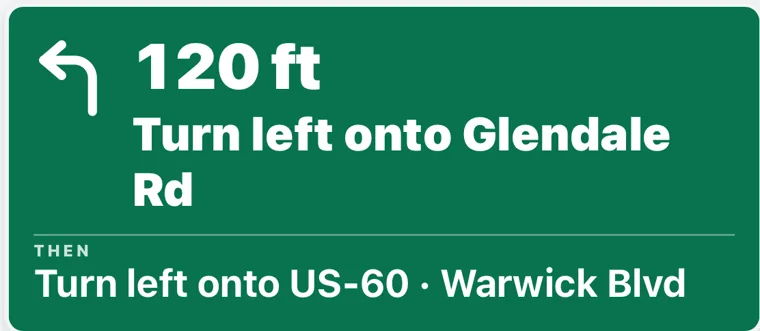
The green sign shows the next maneuver, its distance and the road instruction. A Then line previews the following instruction. Read it together with road signs and the actual road geometry. Tap the sign to view upcoming directions when offered, then close that list to return to the main map. The sign can change as the route progresses or is recalculated.
GPS / 41
Portrait places the directions above the map and trip readings below it. Landscape places the information beside the map. The bottom portrait panel has a Hide trip details control; tap Trip details to reopen it. Closing the cards gives the map more room without ending navigation. Rotation changes presentation, not your intended destination order. Physical device dimensions, safe areas and the keyboard can affect the available space.
GPS / 42
Use the display control to choose day, night or automatic appearance where available. The map theme and surrounding panels should change together. If only the panels change, the map renderer or tiles may have failed; use the visible status message to diagnose the issue. Dark mode changes visibility and color, not the route or truck restrictions.
GPS / 43
Choose 2D for a flat view or 3D for a tilted vector view. HERE 3D requires network access, provider access and working device graphics support. A selected 3D button is not proof that the map loaded. If the renderer fails, RoadPlan can keep guidance running with a 2D fallback and show the failure message over the map. Buildings and terrain appear only where mapped and supported.
GPS / 44
Use the map controls to zoom and recenter. Manual panning can move the view away from the truck; recenter restores following. Travel direction should come from reliable movement and location data, with the heading retained while stopped when appropriate. If the arrow or camera looks wrong, report the condition with the available diagnostics. Do not manipulate the map while driving.
GPS / 45
The speed display depends on available location measurements. A mapped limit is shown only when the route data supports it; an unavailable value must not be interpreted as unlimited speed. Limits and truck-specific restrictions can vary or change. Follow posted signs and conditions. Overspeed colors or alerts are an aid, not a substitute for observing the legal limit.
GPS / 46
Traffic estimates and incident information depend on provider coverage, freshness and network access. A report near the map center may be off your route. An empty incident list does not establish a clear road, and traffic colors do not describe every hazard. Review the location and reported time. Weather and road overlays give context; they do not replace official closures or direct observations.
GPS / 47
At the current stop, Continue Navigation becomes available when the app can confirm a suitable arrival position. It completes the current stop and advances to the next planned one. At the final stop, review the completion action. If the button is unavailable, check that you are at the current target with a fresh position; do not use a distant location or stale fix to force an arrival.
GPS / 48
The iPhone companion adds native location and voice services to the shared screen, and supported Watch features can relay directions. These depend on the installed build, permissions and device state. Browser background behavior is more limited. Test voice while safely parked. A successful website check does not verify locked-screen execution, Watch haptics or physical iPhone audio behavior.
GPS / 49
Check permissions, connectivity and whether the app is paused or in the background. Read any visible map error; the map and navigation engine can fail separately. If the screen is blank or the position is no longer reliable, stop using it for guidance until resolved. Report what happened, your device/build and the exact message through support. Do not include sensitive load or customer details in public reports.
Records & earnings / 50
Save a trip for later to keep its inputs and plan with your account. When reopening, review the starting point, destinations, dates and current conditions. Fuel and HOS values from a previous day may no longer be valid. A saved route is not a permanent routing approval. Rebuild after updating the entries and recheck the selected stops before starting a new navigation session.
Records & earnings / 51
Previous-trip information helps distinguish routes by addresses, mileage and recorded or last-used times where available. A planning record and a GPS recording are different kinds of information. Review the relevant account page for what was saved. If a recording is missing or appears incomplete, report the time and trip identifier privately rather than assuming every drive was captured.
Records & earnings / 52
Open trip earnings to review mileage pay or a percentage of a load, depending on your setup. Check the rate, eligible mileage or load amount before relying on the estimate. Fuel reimbursement and personal spending affect the result differently. The tool helps organize your numbers; it does not determine an employer’s settlement, guarantee earnings or replace your pay agreement.
Records & earnings / 53
Record fixed and variable costs with the correct frequency and trip association. Enter actual fuel purchases for the trip rather than treating estimated consumption as a receipt. Review the weekly ledger and cumulative totals for missing or duplicated entries. If a value changes, correct the underlying input and check the updated result. Keep your own supporting records for accounting and tax purposes.
Community & help / 54
Open Driver forum from the main side menu or the help links. Choose a category, search existing topics and start a discussion or reply. Posts are visible to signed-in RoadPlan drivers. Use private support tickets for account details and sensitive issues. Report inappropriate posts to administrators; moderators can remove posts or close a topic. The forum refreshes on demand and is not an emergency or live dispatch channel.
Community & help / 55
Open Support tickets to report an issue to RoadPlan administrators. Include a clear subject, category, device/build, steps and the exact message. Screenshots are optional within the displayed limits. Tickets are private to you and administrators. Follow replies in the support inbox and check the status; this release does not promise email notification or a response time. Keep payment credentials and private load information out of attachments.
Community & help / 56
Reopen the app to load a newly published shared interface, but native changes require a new installed iPhone build. If an issue remains, say whether it occurs in the browser, app or both and whether it began after an update. Check the visible status message and the relevant guide chapter before submitting a ticket. Do not assume that a published fix has been verified on your exact device; physical iPhone behavior can still need acceptance testing.
ADDITIONAL TOOLS / 57
Enter scale-ticket values for the truck and trailer in the Scale My Load tool. Review the detected axle and gross values before using any calculation. Correct a mistyped or misread weight instead of accepting it because it came from a scan. The tool helps compare the entered measurements; it does not establish that the truck is legal for every road, permit, jurisdiction or equipment configuration. Reweigh when needed and follow scale and carrier instructions.
ADDITIONAL TOOLS / 58
Keep the original weighing sequence clear. A reweigh belongs with the same equipment and load context; it is not a new unrelated baseline. Check tractor, trailer and load details before comparing tickets. Review any adjustment suggestion against your actual equipment and the available movement range. Never move axles or equipment based only on an unverified scan. The original tickets and a confirming reweigh are the evidence of the resulting weight distribution.
ADDITIONAL TOOLS / 59
Where an upload or scan is offered, inspect the extracted fields before applying them to the trip. Images can be blurred, cropped or misread, and a successful upload does not mean every detail was understood. Keep addresses, appointment dates, quantities and units consistent with the original document. Do not attach sensitive customer or load documents to a public review or forum discussion. Use only the intended private workflow for information that belongs in your account.
ADDITIONAL TOOLS / 60
The in-app help and assistant can explain the planner and, where supported, help fill trip fields. Review proposed values before building a route or changing a schedule. A spoken answer does not verify an address, truck entrance, parking permission or ELD status. For a reproducible system error, use a private support ticket with the exact message. For a question about the workflow, search this guide or use the available help prompts while safely parked.
Use a private support ticket for a problem with your account or a trip. Include what you expected, what happened and the exact message. Use the forum for general discussions with other drivers.
Support tickets